命令: BMBOM,BMBOMPANELOPEN,BMBOMPANELCLOSE
工程物料清单(BOM)是装配中使用的唯一机械零件的列表。在Bricscad的,该列表被表示为表实体(见表),并且可以在图中的任何位置。每个实体都有其自己的序列号(以1开头),名称和出现的次数。
您可以在“物料清单管理器”中查看和配置物料清单。 BMBOM,BMBOMPANELOPEN,BMBOMPANELCLOSE
工程物料清单(BOM)是装配中使用的唯一机械零件的列表。在THCAD的,该列表被表示为表实体(见表),并且可以在图中的任何位置。每个实体都有其自己的序列号(以1开头),名称和出现的次数。
您可以在“物料清单管理器”中查看和配置物料清单。
物料清单类型
BricsCAD中有三种BOM表类型:有三种BOM表类型:
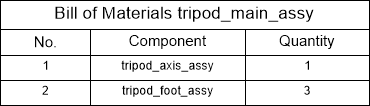
顶级:仅包含顶级组件。顶层零部件是直接插入到主装配体中的零部件。这种BOM表仅列出主要组件,而没有子组件的详细信息。
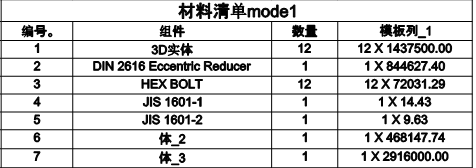
底层:仅包含底层组件(部件)。底层零部件是不包含其他零件或子装配体的零件。这种BOM表列出了主装配体中的所有零件,无论零件属于哪个零件。
层次结构:包含所有组件,其子组件直接在下面列出。子组件的序列号是由点分隔的数字序列(例如,“ 1.2.3”)。此BOM表类型显示装配体的层次结构。
笔记 | 该BOM状态这部分包括在物料清单属性控制。BOM表中组件的级别是根据所有相关组件的BOM状态设置的。例如,具有终端BOM表状态的零部件始终被视为底层零部件,即使它包含其他零件或子装配体也是如此。 |
示例:三脚架组装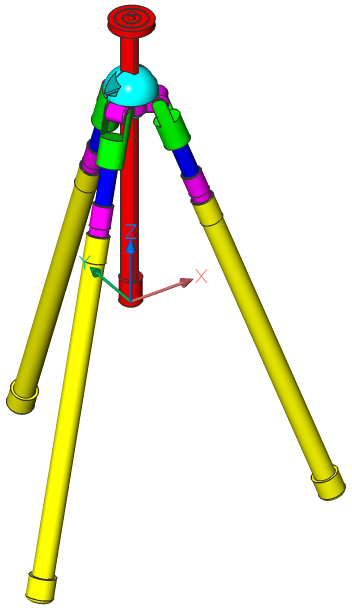
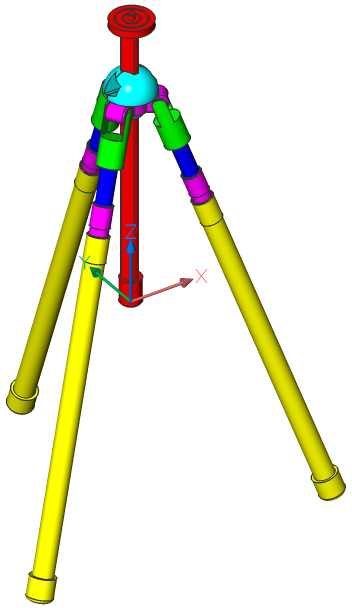
类型 | 物料清单 |
| 顶层 |
|
| 底层 |
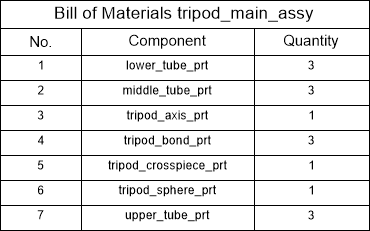
|
| 分层的 |
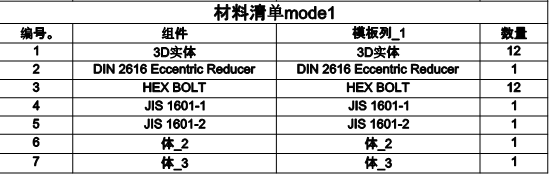
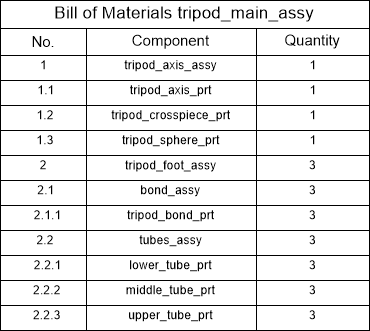
|
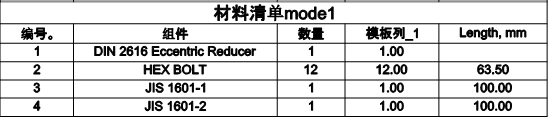
计数模式和最高水平
对于分层BOM表,支持两种计数模式:
- 计算所有实例:整个装配体中子装配体和零件的总数。
- 计数父组件中的实例:父组件中子装配和零件的总数。父组件被视为根组件。
例如,主三脚架组件包含3个三脚架支脚组件。三脚架脚组件的每个实例都包含1个Bond组件和1个Tube组件。例如,三脚架主组件包含3个三脚架支脚组件。三脚架脚组件的每个实例都包含1个Bond组件和1个Tube组件。
如果计数模式设置为Count all instance,则结果为:
| 物料清单三脚架装配(所有实例都包括在内) | ||
| 不。 | ||
| 零件 | 数量 | |
| 1个 | 三脚架组装 | 1个 |
| 1.1 | 三脚架脚组件 | 3 |
| 1.1.1 | 债券组装 | 3 |
| 1.1.2 | 管件组装 | 3 |
如果计数模式设置为“在父组件中计数实例”,则结果为:
| 物料清单三脚架装配(每个零件的实例数) | ||
| 不。 | ||
| 零件 | 数量 | |
| 1个 | 三脚架组装 | 1个 |
| 1.1 | 三脚架脚组件 | 3 |
| 1.1.1 | 债券组装 | 1个 |
| 1.1.2 | 管件组装 | 1个 |
为默认值的计数模式是计数在父组件的实例。您可以在BOM表管理器中或使用BMBOM命令来更改计数模式。您可以在BOM表管理器中或使用BMBOM命令来更改计数模式。
笔记 |
在THCAD 之前,默认情况下,所有层次BOM表都使用“计数所有实例” |
模式。在THCAD或更高版本中更新此类表时,默认模式设置为计数父组件中的实例。这可能导致某些零件的数量不同。如有必要,在BOM表管理器中手动设置计数模式。 |
默认情况下,分层物料清单显示模型中的所有级别。使用最大级别属性可以将层次化BOM限制到特定级别。设置最大级别时,仅包括该级别的零件。例如,如果最大级别= 2,则仅列出顶级组件和直接包含在顶级组件中的子组件。
...
默认情况下,BOM表包含“数量”,“名称”和“数量”列。
使用BmBom命令的Configure选项,您可以添加更多列,例如Description,Density,Volume,Mass,Material,Thickness(对于钣金零件)和Parameters(对于参数化零件)。
可以将组件,实例或块引用的任何内置属性添加到BOM表。使用DataExtraction技术还支持自定义评估列。
...
使用BmBom命令的Configure选项,您可以添加更多列,例如Description,Density,Volume,Mass,Material,Thickness(对于钣金零件)和Parameters(对于参数化零件)。
可以将组件,实例或块引用的任何内置属性添加到BOM表。使用DataExtraction技术还支持自定义评估列。

具有密度,体积和质量的BOM。
...
BOM表仅列出了唯一的组件;根据分组模式,将相同组件的多个插入分组。从BricsCAD
V21开始,支持以下分组模式:从THCAD 开始,支持以下分组模式:
- 自动-默认模式。相同组件的多个插入根据其参数和添加的属性分组在一起。这意味着相同参数组件的多个插入始终根据其参数分组在单独的BOM表行中,无论这些参数是否作为列添加到BOM表中。默认模式。相同组件的多个插入根据其参数和添加的属性分组在一起。这意味着相同参数组件的多个插入始终根据其参数分组在单独的BOM表行中,无论这些参数是否作为列添加到BOM表中。
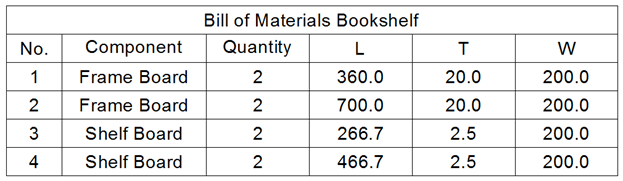
- By components and columns - in this mode, multiple inserts of the same components are grouped together with respect to added properties only. It means that multiple inserts of the same parametric component could be grouped in the same row even if their parameters are different, depending on what columns are added to BOM. However, instances of different components are always grouped in different rows. This mode is useful, if some parameters correspond to different states of components but not result in being different parts.
- By columns only - in this mode, inserts of components are grouped with respect to their properties added to the BOM, regardless if they are inserts of the same component. This mode is useful to get summary tables, such as list of all physical materials or list of all sizes of pipes.
Visible and invisible columns
It is possible to make any column in the BOM table invisible. Invisible columns will not appear in the table in the document. However, you still can use these columns in formulas. Invisible columns will also be displayed in the BOM Manager.
Aggregated columns
Starting from BricsCAD V21, it is possible to set an aggregate function to almost every column in top- or bottom-level BOM tables. Aggregate functions group values of several rows in BOM (that differ only in those values) into one single value. Following aggregate functions are supported:
- Sum - sums the grouped values.
- Average - finds the average value of grouped values.
- Minimum - finds the minimal value of grouped values.
- Maximum - finds the maximal value of grouped values.
- Concatenate - concatenates all unique values in the group in ascending order.
- Concatenate with counts - concatenates all unique values with their number of encounters in the group.
For example, take the following BOM table:
...
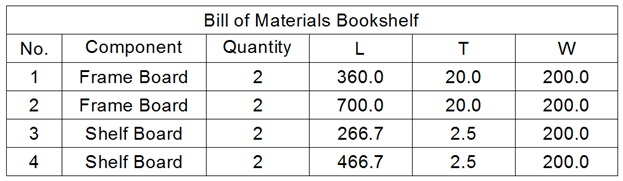
- 通过组件和列-在这种模式下,相同组件的多个插入仅针对添加的属性进行分组。这意味着即使参数相同,也可以将同一参数组件的多个插入分组到同一行中,这取决于将哪些列添加到BOM。但是,不同组件的实例总是分组在不同的行中。如果某些参数对应于组件的不同状态但未导致零件不同,则此模式很有用。
- 仅按列-在此模式下,组件插入根据添加到BOM的属性进行分组,无论它们是同一组件的插入。此模式对于获取摘要表(例如所有物理材料的列表或所有尺寸的管道的列表)很有用。
可见和不可见的列
可以使BOM表中的任何列都不可见。不可见的列将不会出现在文档的表中。但是,您仍然可以在公式中使用这些列。不可见的列也将显示在BOM表管理器中。
汇总列
从THCAD 开始,可以对顶层或底层BOM表中的几乎每一列设置聚合函数。聚合函数将BOM表中几行的值(仅在那些值上有所不同)分组为一个值。支持以下聚合函数:
- 求和-对分组值求和。
- 平均值-查找分组值的平均值。
- 最小值-查找分组值的最小值。
- 最大值-查找分组值的最大值。
- 串联-按升序串联组中的所有唯一值。
- 与计数连接-将所有唯一值与其组中遇到的次数连接在一起。
例如,使用以下BOM表:
| 零件 | 宽度 | 长度 | 高度 | 数量 |
| 光束 | 16 | 250 | 10 | 1个 |
| 光束 | 16 | 200 | 10 | 2个 |
| 光束 | 16 | 220 | 20 | 1个 |
| 光束 | 20 | 215 | 20 | 3 |
| 光束 | 20 | 225 | 20 | 1个 |
并将一个聚合函数应用于“长度”列。下表中汇总了结果:
| 零件 | 宽度 | 高度 | 长度(总和) | 长度(平均) | 长度(最小) | 长度(最大) | 长度(连接) | 长度(与计数连接) |
| 光束 | 16 | 10 | 650 | 216.6667 | 200 | 250 | 200; |
| 250 | 2x200;250 | |||||||
| 光束 | 16 | 20 | 220 | 220 | 220 | 220 | 220 | 220 |
| 光束 | 20 | 20 | 870 | 217.5 | 215 | 225 | 215; |
| 225 | 3x215; |
| 225 |
对于“与计数连接”列,可以:
- 调整相遇次数的位置(在值的前面或后面)。
- 在值之间添加定界符。
- 在值及其相遇次数之间添加定界符。
- 定义相遇次数的后缀和/或前缀。
...
如果在求值列中使用了聚合列,则默认情况下将使用最终值。但是,可以将聚合函数应用于求值列。在这种情况下,将首先针对所有原始值(在合计之前)计算此类评估列的结果,然后将合计结果值。
数字列和列的角色
数字列是用于枚举行的特殊列。它自动为BOM表中的所有行分配编号,而无需跳过,并且独立于其他表。行从1开始编号。
...
- 数字类型-指定哪种数字格式:
- 全数字-格式为“ 1.2.3”
- 短 -仅显示当前级别的数字。它应该与“级别” 列一起使用,该列显示了装配中当前零件的级别。
- 连续-所有组件将从级别1开始连续编号,无论其级别如何。
- 分隔符-当数字类型设置为Full时,指定符号以分隔不同级别的数字。
通常,BmBalloon命令使用数字列作为源来注释工程图。但是,表中的任何列都可以通过更改其角色而用作注释气球的源。可以使用以下列角色:通常,BmBalloon命令使用数字列作为源来注释工程图。但是,表中的任何列都可以通过更改其角色而用作注释气球的源。可以使用以下列角色:
- 数字-列包含注释的数字。
- 名称-列包含注释的零件名称。
- 数量-列包含注释零件的数量。
- 常规-列没有特殊作用。
只有一列可以具有“数字”,“名称”或“数量”角色。如果没有列分配有这些角色之一,则无法进行自动注释。
列宽

By default, the width of each column is set automatically, so its content fits without additional line breaks. However, it is possible to set a fixed column width.
To set the column width, do one of the following:
- Select the required column in the BOM manager, then type a vale for the Width property in layout units.
or - Change the width of the required column in the associated table. Starting from BricsCAD V20.2, BOM tables will automatically keep the width of columns that have been changed manually.
To restore the automatic width mode, select the column in the BOM manager and select Auto in the drop-down list for the Width property .
Column format

You can format column values. Select the required column in the BOM manager and choose the Format option in the context menu. Define the desired format in the Format dialog. The available settings depend on the data type of the selected column. You can select multiple columns of the same type to format them equally.
Property sets
Because BOM tables use DataExtraction technology, you can list properties of mechanical components and entity properties, for example block references in BOM tables.
However, these properties are not always necessary. In large assemblies, these properties could negatively affect performance. This is because BricsCAD caches properties during BOM table creation.
Property sets are built-in sets of properties. You can choose the most optimal set of properties for your needs. Currently, the following property sets are supported:
- Mechanical only - only properties of mechanical components will be listed. Default property set.
- All except coordinates - lists all properties of components except coordinate ones. Coordinate properties are typically used only for component instances. They may take significant time to compute.
- All properties - lists all possible properties of components and component instances.
You may change the property set for a BOM table in the BOM Manager or use BMBOM when you add a new table.
Filter a BOM table
It is possible to filter parts that will form the Bill of Material. Starting with BricsCAD V21, there are two filter types: main and column.
Main filter
A Main filter works in the same way as the DataExtraction command: First, all parts in the assembly, at the required level (top, bottom or hierarchical), are matched against the filter expression. Then, only those parts that have passed the filter will be included in the BOM.
The filter expression may not refer to BOM columns because filtering is done before the BOM is generated. For example, it is possible to create a filter for all standard parts because Is standard is a normal property of the component. However, it is not possible to set the main filter to filter out all parts with a quantity greater than 1; you should use Column filters for that.
Filter configurator
The easiest way to configure the main filter is to use the Filter Configurator in the BOM manager.
...
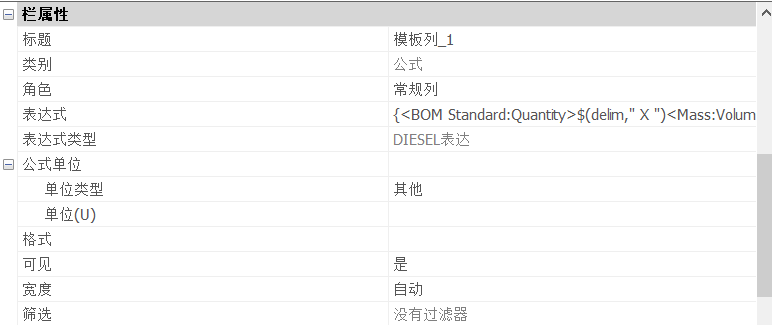
默认情况下,每列的宽度是自动设置的,因此其内容适合而没有其他换行符。但是,可以设置固定的列宽。
要设置列宽,请执行以下操作之一:
- 在BOM表管理器中选择所需的列,然后以布局单位为Width属性键入一个vale 。
或者 - 更改关联表中所需列的宽度。从THCAD V20.2开始,BOM表将自动保留已手动更改的列的宽度。
要恢复自动宽度模式,请在BOM表管理器中选择列,然后在Width属性的下拉列表中选择Auto。
列格式
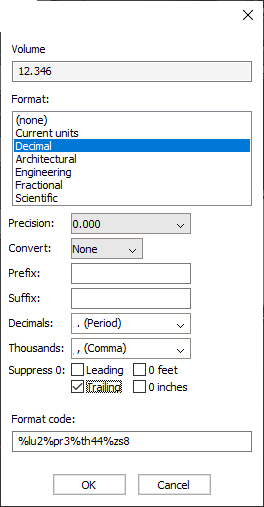
您可以格式化列值。在BOM表管理器中选择所需的列,然后在上下文菜单中选择“格式”选项。 在“格式”对话框中定义所需的格式。可用设置取决于所选列的数据类型。您可以选择多个相同类型的列以均等地设置其格式。
属性集
因为BOM表使用DataExtraction技术,所以您可以列出机械零部件的属性和实体属性,例如BOM表中的块引用。
但是,这些属性并不总是必需的。在大型装配体中,这些属性可能会对性能产生负面影响。这是因为THCAD在BOM表创建期间会缓存属性。
属性集是内置的属性集。您可以根据需要选择最佳的属性集。当前,支持以下属性集:
- 仅机械-仅列出机械组件的属性。默认属性集。
- 除坐标外的所有-列出除坐标外的所有零部件属性。坐标属性通常仅用于组件实例。他们可能需要花费大量时间进行计算。
- 所有属性-列出组件和组件实例的所有可能的属性。
您可以在BOM表管理器中更改BOM表的属性集,或者在添加新表时使用BMBOM。
筛选BOM表
可以过滤将构成物料清单的零件。从THCAD 开始,有两种过滤器类型:主过滤器和色谱柱。
主过滤器
Main过滤器的工作方式与DataExtraction命令的工作方式相同:首先,将装配中的所有零件(在所需级别(顶部,底部或层次))与过滤器表达式进行匹配。然后,只有那些通过过滤器的零件才会被包含在BOM表中。
过滤器表达式可能不引用BOM表列,因为过滤是在生成BOM表之前完成的。例如,可以为所有标准零件创建过滤器,因为“标准”是组件的常规属性。但是,不可能将主过滤器设置为过滤出数量大于1的所有零件;否则,不能进行过滤。您应该为此使用列过滤器。
过滤器配置器
配置主过滤器的最简单方法是使用BOM表管理器中的“过滤器配置器”。
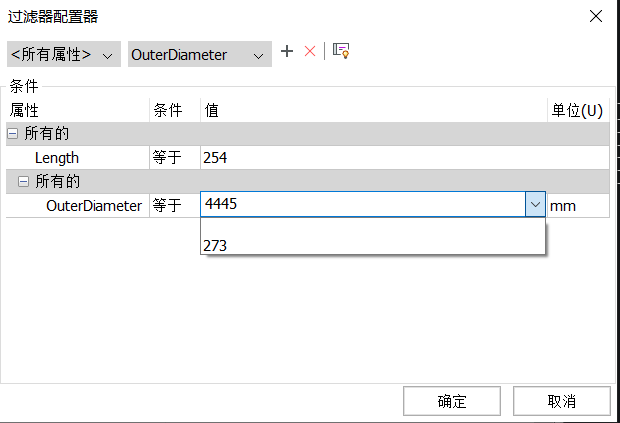
过滤器配置器允许定义一组条件。每个条件都定义了所选属性和目标值之间的关系。可能的关系为“等于”,“不等于”,“小于”,“大于”,“小于或等于”和“大于或等于”。可以将条件添加到组中,该组定义了应如何处理这些条件。有两种组类型:
- “所有”组-如果该组中的所有条件均为“真”,则为“真”。这与“和”运算符相同。
- “任何”组-如果该组中至少一个条件导致“真”,则为“真”。这与“或”运算符相同。
...
- 从属性列表中选择一个属性。
- 选择一个必需的关系运算符并指定目标值。
对于文本值,也可以从所有可能值的列表中选择目标值。
对于数值,还可以指定其目标单位,以便相对于文档的默认单位自动转换该值。
对于文本值,“等于”和“不等于”关系支持通配符。对于文本值,“等于”和“不等于”关系支持通配符。
Filter Configurator会自动将条件集转换为一个过滤器表达式,可以通过按下 按钮将其显示为:Configurator自动将条件集转换为一个过滤器表达式,可以通过按以下按钮使其可见:


此表达式是完全可编辑的,并且与条件集有双向关联。
语法说明:
关系运算符:
| 操作员 | 意义 |
| == | 等于 |
| != | 不等于 |
| < | 少于 |
| > | 比...更棒 |
| <= | 小于或等于 |
| > = | 大于或等于 |
- 属性名称需要用引号引起来。
- 关系运算符可以使用“和”和“或”运算符进行组合。如果运算符的两边都为真,则运算符“和”将得出“真”。如果运算符的左侧或右侧为true,则运算符“ or”将导致“ false”。
- 逻辑运算符“和”和“或”区分大小写。
- 使用“(”和“)”将两个运算符合二为一。
- 字符串值用双引号“”引起来
- 字符串的关系运算符区分大小写。
- "“ ==" and "!=" operators support wildcard templates.
For example, to get a BOM of all standard parts, use the following expression:
"Is standard"=="Yes"To get a BOM of all ISO standard parts, use the following expression:
"Is standard"=="Yes" and "Part standard"=="ISO"To get a BOM of all ISO or DIN standard parts, use the following expression:
"Is standard"=="Yes" and ("Part standard"=="ISO" or "Part standard"=="DIN")Wildcard characters
Wildcard characters allow you to match property values against a specific template. For example, if you want to find all components containing "nozzle" in their names, a following expression could be used:
"Component name"=="*nozzle*"Wildcard characters can be also used as target values in the Filter Configurator.
Only "Equal to" and "Not equal to" relational operators support wildcard characters. Note that wildcard characters in the main filter are case-sensitive. For Column filters, you can specify if you need case-sensitive or case-insensitive matching.
The following special symbols are supported:
| Name | Character | Description |
| Back quote | ` | Escapes the next character (takes it literally). |
| Comma | , | Separates patterns. |
| Asterisk | * | Matches any character sequence, including a null sequence, anywhere. |
| Question Mark | ? | Matches a single character. |
| Period | . | Matches a single non-alphanumeric character. |
| At sign | @ | Matches a single alphabetic character. |
| Hash tag | # | Matches a single numeric character. |
| Tilda | ~ | If the first character in a pattern matches anything but the pattern. |
| Brackets | [...] | Matches a single enclosed character. |
| Tilda brackets | [~...] | Matches a single non-enclosed character. |
| Hyphen | - | In brackets, matches a single character in the specified range. |
Column filter
Column filters have been introduced in BricsCAD V21. This allows you to quickly set the conditions which rows display, depending on the column content (somewhat similar to filters in some spreadsheet processors). Unlike the main filter, they are applied after the BOM table has been generated. Therefore, it is possible to use column filters for columns with aggregated content, such as quantities.
Each column can have one filter only; however, you can add column filters to as many columns as you need. Only rows that pass all column filters display in the final BOM.
您可以使用BOM表管理器中的“列过滤器”对话框来配置列过滤器:
...
- ”和“!=”运算符支持通配符模板。
例如,要获取所有标准零件的物料清单,请使用以下表达式:
“是标准” ==“是”要获取所有ISO标准零件的BOM,请使用以下表达式:
“是标准” ==“是”和“部件标准” ==“ ISO”要获取所有ISO或DIN标准零件的BOM,请使用以下表达式:
“是标准” ==“是”和(“零件标准” ==“ ISO”或“零件标准” ==“ DIN”)通配符
通配符允许您将属性值与特定模板进行匹配。例如,如果要查找名称中包含“喷嘴”的所有组件,则可以使用以下表达式:
“组件名称” ==“* *喷头”通配符可以也用作目标值过滤器配置。
仅“等于”和“不等于”关系运算符支持通配符。请注意,主过滤器中的通配符区分大小写。对于列过滤器,你可以,如果你需要区分大小写或不区分大小写匹配指定。
下面的特殊符号的支持:
| 姓名 | 特点 | 描述 |
| 反引号 | ` | 转义下一个字符(取它的字面)。 |
| 逗号 | , | 分隔模式。 |
| 星号 | * | 在任何地方匹配任何字符序列,包括空序列。 |
| 问号 | ? | 匹配一个字符。 |
| 时期 | 。 | 匹配一个非字母数字字符。 |
| 在标志 | @ | 匹配一个字母字符。 |
| 井号 | # | 匹配单个数字字符。 |
| 蒂尔达 | 〜 | 如果模式中的第一个字符与模式匹配,则不匹配。 |
| 括号 | [...] | 匹配一个封闭的字符。 |
| 蒂尔达括号 | [〜...] | 匹配一个非封闭字符。 |
| 连字号 | -- | 在方括号中,匹配指定范围内的单个字符。 |
列过滤器
THCAD V21中已引入列过滤器。这使您可以根据列内容(与某些电子表格处理器中的过滤器类似)快速设置行显示的条件。与主过滤器不同,它们在生成BOM表之后应用。因此,可以对具有聚合内容(例如数量)的列使用列过滤器。
每列只能有一个过滤器;但是,您可以根据需要将列过滤器添加到尽可能多的列中。只有通过所有列过滤器的行才会显示在最终BOM表中。
您可以使用BOM表管理器中的“列过滤器”对话框来配置列过滤器:
在此对话框中,您可以从列表中选择过滤器的类型并进行相应的配置。可能的过滤器列表取决于列内容类型,如下表所示:
| 过滤器类型 | 列类型 | 描述 |
| 一直被接受 | 任何 | 接受所有列值 |
| 等于 | 数值的 | 值应等于目标值一 |
| 不等于 | 数值的 | 值应不等于目标值一 |
| 少于 | 数值的 | 值应小于目标值一 |
| 比...更棒 | 数值的 | 值应大于目标值1 |
| 小于或等于 | 数值的 | 值应小于或等于目标值1 |
| 大于或等于 | 数值的 | 值应大于或等于目标值1 |
| 之间 | 数值的 | 值应在给定范围内,包括两端 |
| 不在范围内 | 数值的 | 值应不在给定范围内,两端不包括在内 |
| 完全匹配 | 文本 | 值应与目标值完全匹配 |
| 不匹配 | 文本 | 值应与目标值不同 |
| 以。。开始 | 文本 | 值应以给定的文本开头 |
| 不以 | 文本 | 值不应以给定的文本开头 |
| 以。。结束 | 文本 | 值应以给定的文本结尾 |
| 不以 | 文本 | 值不应以给定的文本结尾 |
| 包含 | 文本 | 值应包含给定的文本 |
| 不含 | 文本 | 值不应包含给定的文本 |
| 匹配模式 | 文本 |
| 值应与给定的通配符模板匹配 | |
| 与模式不符 | 文本 |
| 值应不匹配给定的通配符模板 | |
| 在 | 文字和数字 |
| 值应该是在给定的一组值 | |
| 不在 | 文字和数字 |
For all text filters, you can also specify whether they should be case-sensitive or case-insensitive.
Sort a BOM table
There are three sorting modes for BOM tables:
- Automatic order - the table content is sorted as follows: component name, physical material name, thickness (if applicable), parameters (in alphabetic order) and finally, quantity.
- Natural order - the table content is not sorted. Instead, all components are in the order of their appearance in the document. In most cases, parts added earlier will proceed parts added later.
- Custom order - the table content is sorted according to the columns you select. If no columns are specified, the natural order is used.
Starting from BricsCAD V21, BOM tables use so-called "natural sorting" of text. It means that if text contains a mix of letters and numbers, it will be sorted with respect to those numbers. For example, strings "N1", "M2", "N11", "N2", "AA1" will be sorted as "M2", "N1", "N2", "N11", "AA1." Therefore, it is possible to assign custom numbers with various prefixes to components using custom parameters, and then sort the BOM tables by those numbers in the correct order.
Evaluated columns
Evaluated columns are special columns, of which results are depending on other columns using user-defined expressions. Since BricsCAD V21, two kinds of evaluated columns are supported: formula and template columns.
Formula columns
A Bill of Materials supports formula fields. The same syntax is used in the DataExtraction command. FormulaExpression is the expression in the format of \AcExpr formula fields. This can contain constants such as PI or functions such as SIN (see Use Expressions). An operand in an expression can be a ColumnTitle enclosed in arrow brackets (<>).
For example, formula =<Mass>/<Volume> calculates the average density of the component.
If a row does not contain a value, a default value will be used instead. It is possible to specify the default value for an operand using the following syntax:
<"ColumnTitle",DefaultValue>where ColumnTitle is the title of the required column, and DefaultValue is the default value. ColumnTitle must be between double quotes ("). If no default value is specified, an empty value will be used, which in most cases results in an empty output.
A formula column can contain multiple expressions. Each expression should be enclosed by sum brackets ({}). These expressions will be evaluated from first to last, and the first one yielding a non-empty output will be used.
Starting from V21, a formula can refer to other formula columns, provided that they do not form a loop. In a hierarchical BOM, a formula can also refer to values of the parent row by adding Parent: before the column name. It also can refer to properties that are not explicitly added to the table, but all other formula columns referred to in the formula must exist in the table. You can still such columns displayed as invisible in the BOM table in formula expressions.
For distance, area, volume and mass properties, the values will be converted to the user-defined unit before using them in the formula expression. If the user-defined unit is not set, the document unit will be used. For the mass property, kilogram will be used in metric documents and lbs (pound) in imperial documents.
Template columns
Template columns allow you to combine several properties, as well as a custom text, into a single column. A special syntax, based on Diesel expressions, is used to define template columns. Expressions for template columns must start with the $ sign. An operand in an expression can be a ColumnTitle enclosed in arrow brackets (<>). It is also possible to use special functions:
| 值应该不会在给定值 |
对于所有的文本过滤器,你还可以指定是否应区分大小写或不区分大小写。
排序BOM表
BOM表有三种排序模式:
- 自动顺序-表内容如下排序:组件名称,物理材料名称,厚度(如果适用),参数(按字母顺序),最后,数量。
- 自然秩序-表的内容进行排序。取而代之的是,所有组件都在他们的文档中出现的顺序。在大多数情况下,之前添加的零件将在以后添加的零件继续进行。
- 按订单生产-表的内容是根据您选择的列排序。如果没有指定列,则使用自然顺序。
从THCAD的V21开始,BOM表使用所谓的文本的“自然排序”。这意味着,如果文本包含字母和数字的混合,将针对这些数字进行排序。例如,字符串“ N1”,“ M2”,“ N11”,“ N2”,“ AA1”将被排序为“ M2”,“ N1”,“ N2”,“ N11”,“ AA1”。因此,可以与各种前缀使用自定义的参数组件,然后排序按照正确的顺序这些数字的BOM表指定自定义数字。
评估列
评估列是特殊列,其结果取决于使用用户定义表达式的其他列。自THCAD V21起,支持两种评估列:公式列和模板列。
公式栏
物料清单支持公式字段。DataExtraction命令中使用相同的语法。FormulaExpression是\ AcExpr公式字段格式的表达式。它可以包含诸如PI之类的常量或诸如SIN之类的函数(请参见Use Expressions)。表达式中的操作数可以是用尖括号(<>)括起来的ColumnTitle。
例如,公式= <质量> / <体积>计算组件的平均密度。
如果某行不包含值,则将使用默认值。可以使用以下语法为操作数指定默认值:
<“ ColumnTitle”,默认值>其中ColumnTitle是必填列的标题,而DefaultValue是默认值。ColumnTitle必须在双引号(“)之间。如果未指定默认值,则将使用空值,在大多数情况下,这将导致空输出。
公式列可以包含多个表达式。每个表达式都应用和括起来({})。这些表达式将从头到尾进行评估,并且将使用第一个产生非空输出的表达式。
从THCAD开始,一个公式可以引用其他公式列,只要它们不形成循环即可。在分层BOM表中,公式还可以通过在列名称之前添加Parent:来引用父行的值。它还可以引用未显式添加到表中的属性,但是公式中引用的所有其他公式列必须存在于表中。您仍可以在公式表达式的BOM表中将此类列显示为不可见。
对于距离,面积,体积和质量属性,这些值将在公式表达式中使用之前转换为用户定义的单位。如果未设置用户定义的单位,将使用文档单位。对于大众财产,公制文件中将使用公斤,英制文件中将使用磅(磅)。
模板列
模板列允许您将多个属性以及自定义文本组合到一个列中。基于Diesel表达式的特殊语法用于定义模板列。模板列的表达式必须以$符号开头。表达式中的操作数可以是用尖括号(<>)括起来的ColumnTitle。也可以使用特殊功能:
| $(+,arg1,arg2 [,...,arg9]) | 将提供的参数添加到第一个 |
| $( - ,ARG1,ARG2 [,...,arg9]) |
| 减去从第一个提供的参数。 |
| $(* |
| ,ARG1,ARG2 [,...,arg9]) | 将第一个参数乘以提供的参数。 |
| $(/,arg1,arg2 [,...,arg9]) | 将第一个参数除以提供的参数。 |
| $(=,arg1,arg2) |
| 如果arg1等于arg2,则返回1;否则返回1。否则,返回0。arg1和arg2都必须是数字。 |
| $(<,ARG1,ARG2) |
| 如果arg1小于arg2,则返回1;否则,返回1。否则,返回0。arg1和arg2都必须是数字。 |
| $(>,ARG1,ARG2) | 如果arg1大于arg2,则返回1;否则返回1。否则,返回0。arg1和arg2都必须是数字。 |
| $(!=,arg1,arg2) | 如果arg1不等于arg2,则返回1;否则返回1。否则,返回0。arg1和arg2都必须是数字。 |
| $(<=,arg1,arg2) | 如果arg1小于或等于arg2,则返回1;否则,返回1。否则,返回0。arg1和arg2都必须是数字。 |
| $(> =,arg1,arg2) | 如果arg1大于或等于arg2,则返回1;否则返回1。否则,返回0。arg1和arg2都必须是数字。 |
| $(and,arg1,arg2 [,...,arg9]) | 对参数应用按位AND运算 |
| $(angtos,angle [,mode,precision]) | 相对于给定模式(0-度,1- d / m / s,2-渐变,3-弧度)和精度将角度转换为字符串。 |
| $(delim,delimiter_string) | 插入智能定界符。仅当此分隔符前后的输出不为空时,分隔符字符串才会添加到输出中。 |
| $(编辑时间,时间,格式) | 根据给定的格式字符串格式化日期。 |
| $(eq,arg1,arg2) | 如果arg1等于arg2,则返回1;否则返回1。否则,返回0。arg1和arg2都必须是文本。 |
| $(eval,表达式) | 将给定表达式评估为Diesel表达式。 |
| $(固定值) | 将实际值截断为整数1。 |
| $(getvar,变量) | 返回给定系统变量的值。 |
| $(if,arg,then [,else]) |
| 返回“那么”如果“ARG”不为0; 否则,如果未提供'else' |
| ,则返回'else' |
| 或空字符串。 | |
| $(索引,位置,逗号分隔的字符串) | 返回给定逗号分隔字符串中给定位置的子字符串。 |
| $(nth,position,arg1 [,arg2,...,arg9]) | 返回给定位置的参数。 |
| $(或arg1,arg2 [,...,arg9]) | 对参数应用按位或运算。 |
| $(RTOS,值[ |
| ,模式,精密]) | 根据所需的模式和精度设置给定值的格式。 |
| $(strlen的字符串) | 返回给定字符串的长度。 |
| $(SUBSTR,字符串,开始[ |
| ,长度]) |
| 从给定的“长度”的“开始”的“串”的返回的字符串。计数从1开始。 | |
| $(大写,字符串) | 将“字符串”转换为大写。 |
| $(xor,arg1,arg2 [,...,arg9]) | 对所有参数应用按位XOR。 |
一个模板列可以包含多个表达式。每个表达式都应用和括起来(一个模板列可以包含多个表达式。每一个表达应该由总和括号括起来({})。这些表达式将从头到尾进行评估,并且将使用第一个产生非空输出的表达式。
Starting from V21, a template column can refer to other evaluated columns, provided that they do not form a loop. In a hierarchical BOM, a template column can also refer to values in the parent row by adding Parent: before the column name. It can also refer to properties that are not explicitly added to the table, but all other evaluated columns referred to in any of the expressions must be present in the table. You can still use columns displayed as invisible in the BOM table in template expressions.
You can use "\n" string to add a line break.
For example, the following expression combines PartNumber, Width, Height and Length properties:
${<PartNumber>$(delim," X ")<Width>$(delim," X ")<Height>$(delim," X ")<Lenght>}Expression configurator
You can use the Expression configurator dialog to configure an evaluated column. This dialog is available in Bill of Materials Manager.

This dialog allows you to set the title and unit for the column, edit the expression using an editor with syntax highlight and autocompletion, and see a of the BOM table with the evaluated column. For a template column, the Template section allows you to easily insert, move and delete properties, as well as delimiters and custom texts.
Column units
You can adjust the units placement mode for columns that have associated units. The following options are available:
...
从THCAD开始,模板列可以引用其他评估列,只要它们不形成循环即可。在分层BOM表中,模板列还可以通过在列名称之前添加Parent:来引用父行中的值。它也可以引用未显式添加到表中的属性,但是任何表达式中引用的所有其他求值列都必须存在于表中。您仍然可以在BOM表中使用在模板表达式中显示为不可见的列。
您可以使用“ \ n”字符串添加换行符。
例如,以下表达式结合了PartNumber,Width,Height和Length属性:
$ {<PartNumber> $(delim,“ X”)<Width> $(delim,“ X”)<Height> $(delim,“ X”)<Lenght>}表达式配置器
您可以使用“表达式配置器”对话框来配置评估列。此对话框在物料清单管理器中可用。
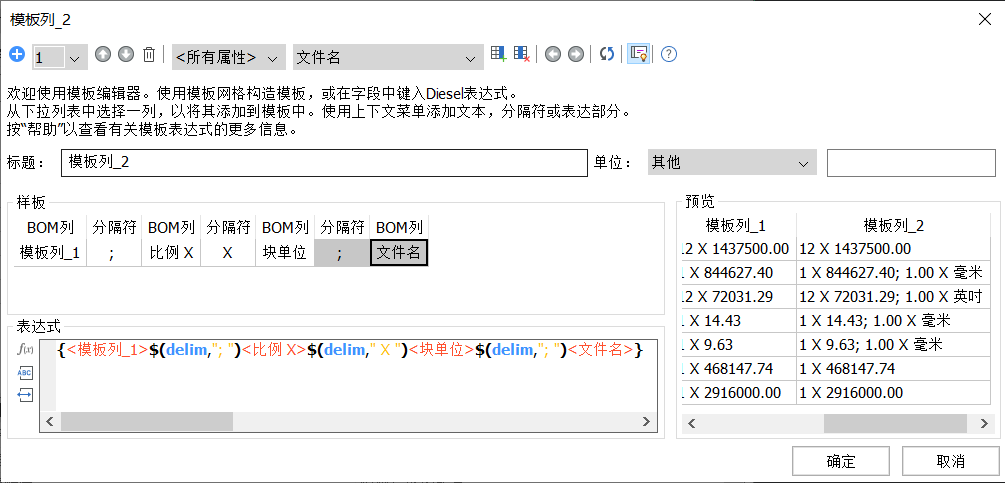
该对话框允许您设置列的标题和单位,使用带有语法突出显示和自动完成功能的编辑器来编辑表达式,并查看带有已评估列的BOM表的。对于模板列,可以使用“模板”部分轻松地插入,移动和删除属性以及定界符和自定义文本。
列单位
您可以为具有关联单位的列调整单位放置模式。提供以下选项:
- 不显示单位-BOM表将不显示此列的单位。
- 在列标题中-如果表中的所有值都使用相同的单位或可以转换为通用单位,则所有值都将转换为该通用单位。单元名称将添加到列标题中。您可以使用“标题格式”属性配置标题和单位的位置。用<标题>表示标题,用<单位>表示单位。例如,默认标题格式为“ < Title >, <Unit>” 表示单位。例如,默认标题格式为“ < Title >, <Unit>” 。您可以使用“ \ n”添加换行符。通用单位将按以下顺序选择:
- 您设定的单位。
- 如果属性是距离,面积,体积或质量,并且单位模式对于所有值都是“最佳”,则将使用大多数值的最佳表示形式。
- 如果所有值都具有相同的单位,则将使用此单位。
- 在单元格中-单位名称将添加到值中。值和单位显示在同一单元格中。
- 在其他列中-单元名称将放置在单独的列中。
您可以为距离,面积,体积和质量值设置单位模式,以定义用于显示特定值的单位。例如,如果质量从1克到几吨不等,则为每个值选择“最佳”以显示转换为最合适质量单位的每个质量。要查看所有质量(以千克为单位),请将千克设置为该列的用户定义单位。默认值是所有值的最佳值。可以设置单位模式为距离,面积,体积和质量值来定义用于显示一个特定的值的单位。例如,如果有从群众1克要几吨,选择最适合每个值显示每个质量转换为最适合的质量单位。看到所有群众公斤,设置公斤作为用户定义的列单元。最适合所有的值是默认的。
单位模式选项:
- 不显示单位-不显示单位。
- 最适合所有值-显示大多数值具有最佳表示的单位。仅支持尺寸,面积,体积和质量属性。
- 用户定义的-您选择要显示的单位。除了尺寸,面积,体积和质量特性外,还可以为材料特性(例如密度,导热率和比热)选择所需的单位。
- 最适合每个值-使用最适合每个值的单位。的在列标题的模式单位放置自动切换到在另外的列模式。仅支持尺寸,面积,体积和质量属性。
笔记 | 如果为列设置了用户定义的单位,并且该列在公式字段中使用,则转换为该单位的值将替换为公式。否则,将使用文档单元。 |
页脚
材料明细表表支持页脚。要定义哪些列将构成页脚,请为所需的列设置页脚类型:
...
您可以将BOM表配置另存为模板,并使用它来创建新的BOM表。模板文件包含所有必需的数据。它包括表类型,标题,过滤器和具有所有关联属性的列集。您可以将标题中的<NAME>用作程序集实际名称的占位符。例如,如果您的部件名称为“我的部件”,并且BOM表的标题被指定为<NAME>的材料明细表,则BOM标题将为“我的部件的材料明细表”,因为“我的部件”将被替换<NAME>。
默认情况下,BOM模板文件的扩展名为.BOM。BOM表模板文件是数据提取定义文件(
BOM表模板文件是数据提取定义文件(.dxd)的扩展dxd)的扩展。但是,您不能将.dxd文件用作BOM表模板,因为某些BOM表特定的数据将丢失。您不能使用.BOM文件来定义DataExtraction模板。您可以在任何文本编辑器中编辑模板文件。但是,Bricsys建议使用BMBOM命令或BOM表管理器来创建和编辑模板文件。BOM文件来定义DataExtraction模板。
您可以在任何文本编辑器中编辑模板文件。但是,建议使用BMBOM命令或BOM表管理器来创建和编辑模板文件。
BOM状态
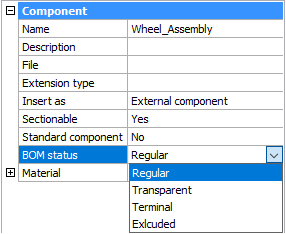
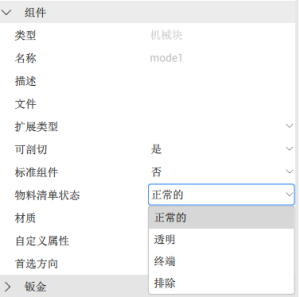
每个组件都有一个BOM表状态属性。您可以使用它来控制“物料清单”表中组件的行为。此属性可以具有以下值之一:
常规-零件出现在材料明细表中与装配体结构相同的位置,并且是材料明细表所选模式的默认值。
透明-组件充当其子组件的透明容器。组件不会出现在材料明细表中,但是子组件可以出现在BOM表中,这取决于它们的BOM表状态,在装配结构中的位置以及BOM表的模式。
终端-该组件被视为叶组件(没有子组件)。这对于复杂零件或标准组件很有用。
排除-组件及其子组件未出现在材料明细表中。
设置外部或根组件的BOM状态
打开包含组件的文件。
在“机械浏览器”中选择根组件。在“机械浏览器”中选择根组件。
设置BOM表状态属性。
设置本地组件的BOM状态
在机械浏览器中选择组件。在机械浏览器中选择组件。
右键单击所选节点以打开上下文菜单。
从“ BOM状态”子菜单中选择一个“ BOM状态”。

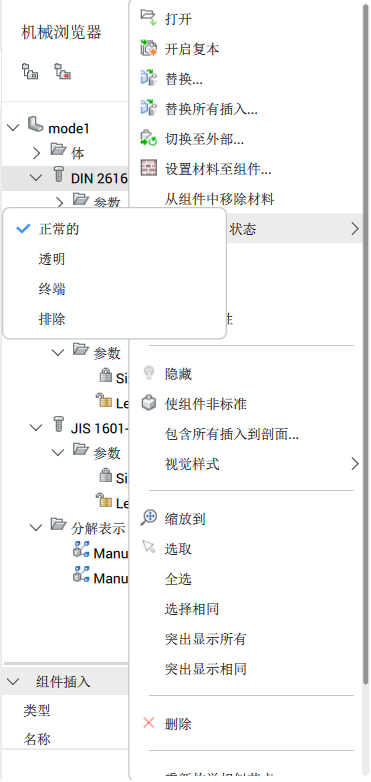
笔记 | 无法通过上下文菜单为插入外部组件的本地组件设置BOM表状态。为此,您必须打开包含本地组件的组件。 |
固定角
从BricsCAD V21开始,可以将桌子的任何角设置为固定的。BOM更新期间,固定角将始终保持其初始位置。手动移动桌子后,将保留该角的新位置。固定的角允许将BOM表与其他对象对齐。
...
从THCAD开始,可以将桌子的任何角设置为固定的。BOM更新期间,固定角将始终保持其初始位置。手动移动桌子后,将保留该角的新位置。固定的角允许将BOM表与其他对象对齐。
您可以通过BmBom命令或BOM表管理器选择在放置表期间要固定的角点;使用Tab键循环拐角。您可以在BOM表管理器中更改BOM表的固定角。
命令: BMBOM,BMBOMPANELOPEN,BMBOMPANELCLOSE
工程物料清单(BOM)是装配中使用的唯一机械零件的列表。在THCAD的,该列表被表示为表实体(见表),并且可以在图中的任何位置。每个实体都有其自己的序列号(以1开头),名称和出现的次数。
您可以在“物料清单管理器”中查看和配置物料清单。