...
- 从https://www.rhino3d.com/download下载Rhino 7 。
注意:自THCAD和Rhino 7发行以来,您可以在THCAD中使用Rhino / Grasshopper连接,同时具有THCAD BIM和Rhino 7的试用许可证密钥。旧版本的Rhino的密钥不适用于此集成。 - 从THCAD应用商店下载Grasshopper-THCAD连接:
注意:“应用程序商店”中当前可用的Grasshopper-THCAD连接仅在THCAD BIM V21中有效,而在较早版本中则无效。BIM中有效,而在较早版本中则无效。 - 重新启动THCAD。
- 要启动Grasshopper或Rhino,请打开并保存新图形。然后使用功能区中显示的新选项卡中的按钮或使用Quad启动的按钮。
...
- Add the 'Start_3.ghx' code to the canvas.
- You do that by downloading the zip file at the bottom of this page and extracting its content.
- Then open the 'Start_3.ghx' file by going to File > Open Document... in your Grasshopper window.
- You can now select all of the Grasshopper code by hitting Ctrl+A on the keyboard and copy it using Ctrl+C.
- Then switch back to the document you were working on in the previous procedure by going to the upper right corner of the Grasshopper window and clicking on the title of the current document (Start_3).
- You then get a drop-down of all the active Grasshopper scripts, so open 'End_2.ghx'.
- Now click on the canvas and hit Ctrl+V to paste the 'Start_3.ghx'-code.
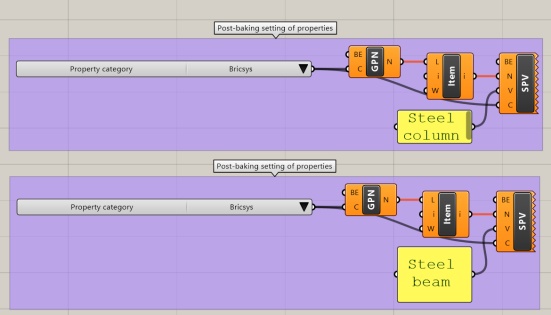
- This code has some post-baking settings of classified and baked beams and columns:
- The script uses the Get Properties Names component to display the BIM properties in the Property Category 'Bricsys'.
- In those properties, it selects item 1 for the columns and item 0 for the beams, 'ColumnType' and 'BeamType' respectively.
- To conclude, it sets the properties to the value specified in the Panel components, using the Set Property Value components.
- To make the script work, bake the two Bake Building Element components that make up the railing.
- Now link the Building Element output of the Bake Building Element components to the respective Building Element input of the Get Properties Names components.
- 同样,将“烘焙建筑元素”组件的“建筑元素”输出链接到“设置属性值”组件的相应“建筑元素”输入。
- 如果现在在THCAD中选择一列并打开其属性,则ColumnType将设置为“钢柱”。当您更改面板组件的值时,THCAD中的属性会实时更改。
- 结果脚本:“ End_3.ghx”可在此页面底部的zip文件中找到。它可以与“ End_3.dwg”文件一起使用,在该文件中没有任何内容。烘焙所有建筑元素,以获取烘焙后设置。
...